To connect Motionblinds to Google Assistant, you need a compatible Wi-Fi bridge and to link your account in the Google Home app. You can then control your blinds by voice and include them in automated routines.
Read this in one minute
What's new?
- This article explains how to connect and control Motionblinds with Google Assistant. It describes the setup requirements and how voice control and automation work within the Google Home ecosystem.
What you need to know
- Google Assistant integration: Motionblinds can be controlled through Google Assistant when connected via a compatible Wi-Fi bridge. Direct control via Bluetooth is not supported.
- Bridge requirement: A Motionblinds Wi-Fi bridge is required to connect the blinds to the Google Home app and enable cloud communication.
- Account linking: Users must link their Motionblinds account in the Google Home app to discover and control devices.
- Voice commands: Blinds can be opened, closed or set to a specific position using voice commands through Google-enabled devices.
- Automation support: Blinds can be added to Google Home routines and grouped with other smart devices for scheduled or triggered actions.
Key takeaways
- Using Motionblinds with Google Assistant requires a compatible bridge and account integration. Once set up, the blinds can be controlled by voice and included in automated routines.
- This setup is important for users who use the Google Home ecosystem and want centralised smart home control.
Motionblinds can be connected to Google Assistant. Follow the step-by-step instructions.
PLEASE NOTE: your Motionblinds bridge must be set up before connecting to Google Assistant.
Set up your Google Assistant
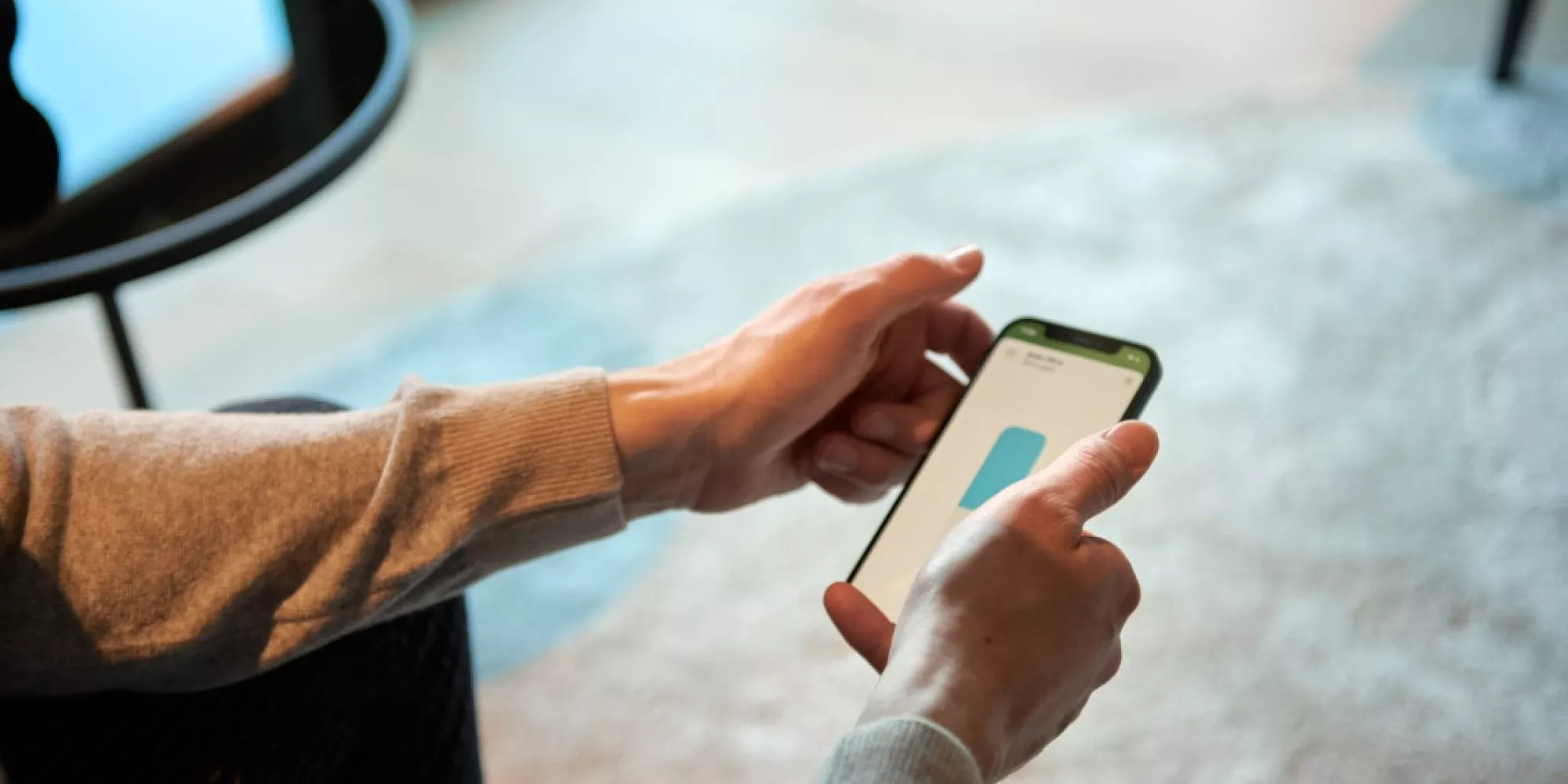
- Open the Google Home app
- Click the "+ Add" button to connect Motionblinds
- Select " + Set up device"
- Add an existing device. Motionblinds works with Google and is already set up
- Search for Motionblinds
- Sign in with the Motionblinds account credentials you use for the Motionblinds smartphone app
Control your blinds with Google Assistant
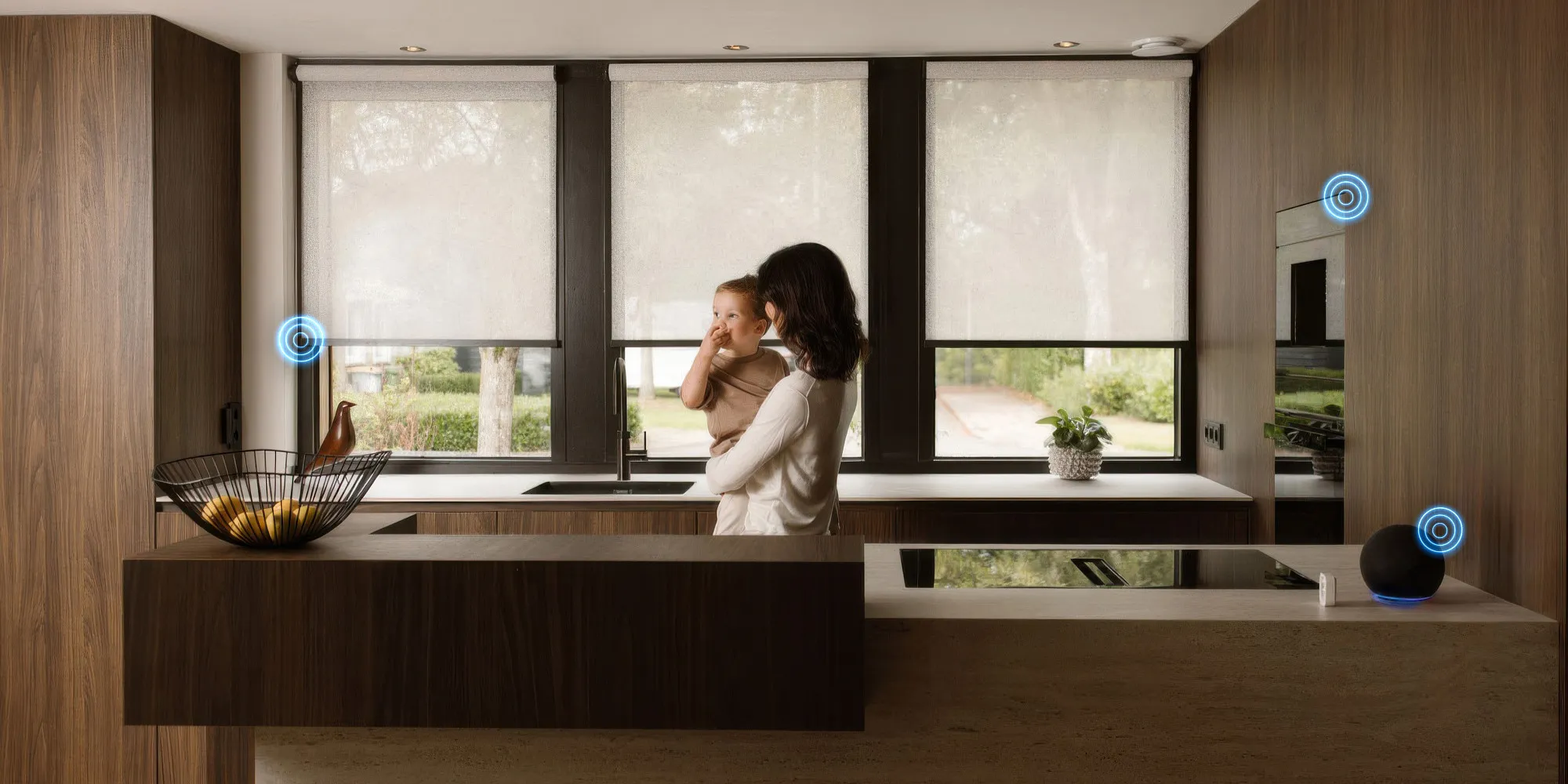
Your Motionblinds are now connected to your Google Home account. You can control your blinds with Google Assistant. To control your blinds, simply press the microphone button or speak to your smart speaker.
Voice commands
- Open/Close [Blind name] - For example "Hey Google, open the left roller blind"
- Open/Close [Room name] - For example "Hey Google, close the living room"
- Open/Close [Blind name + percentage] "Hey Google, open the left roller blind to 38%"
- Activate [Scene name] "Hey Google, activate morning"
Source: Motionblinds